

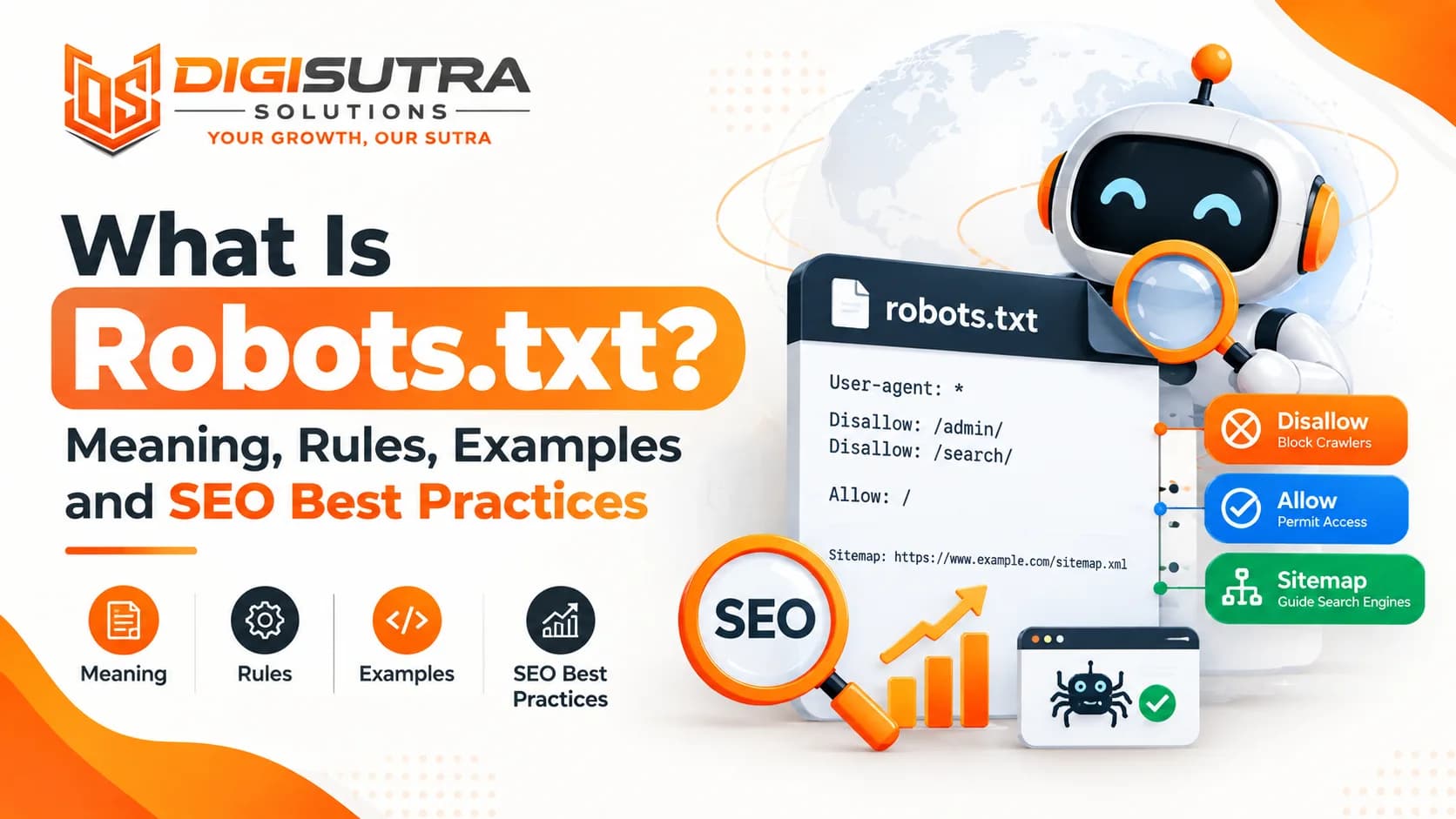
What Is Robots.txt? Meaning, Rules, Examples and SEO Best Practices
Key takeaways
- Robots.txt is a plain text file at the root of a website that tells search engine and AI crawlers which URLs they may crawl.
- Robots.txt is older than Google.
- A crawler visits your domain and asks for the robots.txt file first.
- Search engines give each site a limited amount of crawling time.
Every website gets visits from bots. Some are search engine crawlers like Googlebot. Some are AI crawlers that feed tools like ChatGPT and Perplexity. Others are scrapers you never invited.
Robots.txt is the small text file that tells these bots which parts of your site they may crawl. It is easy to write and easy to get wrong. One bad line can hide your whole site from Google.
This guide explains robots.txt in simple words. You will see how crawlers read the file and which rule wins when two rules clash. You will also get copy-ready examples and an AI crawler cheat sheet. Then you will learn how to test the file and fix the errors Search Console reports.
What Is Robots.txt?
Robots.txt is a plain text file at the root of a website that tells search engine and AI crawlers which URLs they may crawl. It follows the Robots Exclusion Protocol which became an official internet standard in 2022. It controls crawling and not indexing so it cannot hide a page from Google on its own.
If you searched what is robots.txt after seeing a warning in Google Search Console this is the file it means. It always lives at one fixed address like yoursite.com/robots.txt. Some people type it as robot.txt but the file name always ends in robots.txt with an s.
Think of it as a sign on your front gate. It tells polite visitors which doors are open. Good bots like Googlebot and Bingbot follow it. Bad bots often ignore it.
Robots.txt Key Facts at a Glance
Location: the root of your domain such as example.com/robots.txt
Format: plain text saved in UTF-8
Name: must be exactly robots.txt in lowercase
Standard: the Robots Exclusion Protocol published as RFC 9309 in 2022
Size limit: Google reads only the first 500 KiB of the file
Cache time: Google usually keeps a copy for up to 24 hours
Scope: each subdomain, protocol and port needs its own file
Rules Google reads: user-agent, allow, disallow and sitemap
Main job: control crawling and not indexing
What it cannot do: lock private pages or guarantee a page stays out of Google
History of Robots.txt: From 1994 to RFC 9309
Robots.txt is older than Google. Software engineer Martijn Koster proposed it in February 1994 when early crawlers were flooding small web servers with requests. Within a few months most crawlers of that time had agreed to follow it.
For 25 years it worked as a shared habit with no official rulebook. In 2019 Google asked the Internet Engineering Task Force (IETF) to make it a formal standard and released its own robots.txt parser as open source code. The standard arrived as RFC 9309 in September 2022. Today the same file has a new job as the main way to set rules for AI crawlers.
Robots.txt Timeline
1994: Martijn Koster proposes the rules to stop crawlers from overloading servers
1994: the search engines of the day start following them
2019: Google pushes for an official standard and opens up its parser code
2019: Google stops reading noindex lines in robots.txt from September 1
2022: the IETF publishes the standard as RFC 9309
2023: large sites start blocking AI training bots such as GPTBot
2025: new add-ons like Cloudflare's Content Signals appear for AI use rules
How Does Robots.txt Work?
A crawler visits your domain and asks for the robots.txt file first. It reads the group of rules that matches its name. Then it crawls only the areas those rules allow.
Robots.txt is a request and not a lock. Google, Bing and other major search engines follow it. Scrapers and spam bots can ignore it and some even read it to find the folders you want hidden.
Google keeps a copy of the file for up to 24 hours so a change may not act right away. After an urgent fix you can ask Google to fetch the file again from the robots.txt report in Search Console.
What Happens Step by Step
The bot requests yoursite.com/robots.txt
It finds the group of rules that matches its user agent name
It checks each URL against the Allow and Disallow lines
It crawls the URLs that pass and skips the rest
It reads the Sitemap line if you added one
What Happens When Robots.txt Is Missing or Broken
The reply your server gives for robots.txt changes how Google treats your whole site.
Server reply for robots.txt | What Google does |
200 OK | Reads the file and follows the rules |
3xx redirect | Follows at least five redirects and then treats the file as missing |
404 or other 4xx except 429 | Treats the file as missing and crawls everything |
5xx or 429 | Stops crawling for 12 hours and then uses the last good copy for up to 30 days |
Timeout or DNS error | Treats it the same as a server error |
A missing file does no harm. A file that keeps failing with server errors can stop Google from crawling your site.
Why Robots.txt Matters for SEO
Search engines give each site a limited amount of crawling time. This is called crawl budget. Google says it is mainly a concern for very large sites with around a million pages or sites with more than 10,000 pages that change every day.
Filter and sort options cause most crawl waste. A store with color, size and price filters can turn a few hundred products into thousands of near copy URLs. Bots can get stuck crawling them in what SEOs call a spider trap. A few robots.txt lines keep bots on the pages that earn traffic.
The file also protects your server from heavy crawling. If your pages still fail to rank after you fix crawling our guide on why a website is not ranking on Google covers the other common causes.
Main Uses of Robots.txt
Block internal search result pages
Block cart, checkout and login pages
Stop bots from crawling endless filter and sort URLs
Keep staging or test areas from being crawled
Keep chosen images, videos and audio files out of Google search results
Reduce server load from heavy or unwanted bots
Point crawlers to your XML sitemap
Allow or block specific AI crawlers
Do You Need a Robots.txt File?
Not always. When a site has no robots.txt file crawlers treat every page as open and that works fine for many small sites. Most sites still gain from having one because it points bots to the sitemap and keeps them out of low value URLs.
Plenty of big sites skip it. Cloudflare found in 2025 that only 37% of the top 10,000 websites it looked at had a robots.txt file at all.
You Need One If
Your site has filters, sorting or internal search that create many URL versions
You run an online store with cart, checkout and account pages
You have a staging site or test folders on a public server
You want to allow or block AI crawlers by name
Bots are putting real load on your server
You Can Skip It If
Your site has a handful of pages and nothing to keep bots away from
Your platform already creates a sensible file for you
Your only goal is hiding pages from Google since that job needs noindex
Robots.txt Syntax: The Rules Explained
The file is built from groups. Each group starts with one or more User-agent lines followed by its rules. Google supports only four fields: user-agent, allow, disallow and sitemap. It skips every other line.
Here is a simple example.
# Rules for every crawler
User-agent: *
Disallow: /cart/
Disallow: /checkout/
# Where the sitemap lives
Sitemap: https://www.example.com/sitemap.xml
The star means all bots. Each Disallow line blocks a path. Lines that start with # are notes for humans. The Sitemap line shows bots where your sitemap sits.
Robots.txt Directives at a Glance
User-agent: names the bot the rules apply to and * means every bot
Disallow: blocks a path from being crawled
Allow: opens a path inside a blocked folder
Sitemap: gives the full URL of your XML sitemap and you can list more than one
Crawl-delay: asks for a pause between requests which Google ignores and Bing still reads
Comments: any text after # is ignored by bots
Formatting Rules to Remember
Put each rule on its own line
Leave a blank line between groups so the file stays easy to read
Field names like Disallow are not case sensitive but paths are
A Disallow or Allow line with no path does nothing
Every path starts with a /
Sitemap lines need a full URL and can sit anywhere in the file
Pattern Rules to Remember
* matches any run of characters
$ marks the end of a URL
Paths are case sensitive so /Blog/ and /blog/ are different
A rule matches from the start of the path so /blog also blocks /blog-tips/ and /blogger-guide/
Add a trailing slash like /blog/ when you mean only that folder
A star at the end of a rule changes nothing because rules already cover everything after them
Here is a pattern example that blocks all PDF files.
User-agent: *
Disallow: /*.pdf$
Rules Google Does Not Support
Noindex: Google stopped reading it in robots.txt on September 1 2019
Nofollow: never supported so use a meta robots tag or link attributes instead
Crawl-delay: ignored because Google sets its own crawl speed based on how your server responds
Host: an old Yandex rule for choosing a main domain
Visit-time and Request-rate: non standard lines that most crawlers skip
Bing still reads Crawl-delay so use it with care. A delay of 30 seconds caps a bot at 2,880 requests a day which is far too low for a large site.
How Crawlers Decide Which Robots.txt Rules to Follow
Most robots.txt bugs come from two rules. The first decides which group a bot reads. The second decides which line wins inside that group.
Each Bot Follows Only One Group
A crawler looks for the group with the most specific name that matches it. It follows that group alone and ignores the rest. The star group is only a fallback for bots that have no group of their own.
This catches many site owners out. Look at this file.
User-agent: *
Disallow: /cart/
Disallow: /admin/
User-agent: Googlebot
Disallow: /admin/
Googlebot reads only its own group. So it can crawl /cart/ even though the star group blocks it. When you give a bot its own group copy every rule it still needs into that group.
If the same bot name appears in two groups Google merges them into one. The order of groups in the file does not matter.
When Allow and Disallow Clash
Inside a group Google picks the rule with the longest matching path. If the longest Allow and Disallow rules are the same length the Allow rule wins.
User-agent: *
Disallow: /shop/
Allow: /shop/sale/
Here /shop/sale/summer-dress can be crawled because /shop/sale/ is the longer match. Every other page under /shop/ stays blocked. Some other crawlers use simpler logic so avoid clashing rules where you can.
Rule Priority Checklist
Find the group whose user agent name matches the bot most closely
Fall back to the star group only if no named group matches
Inside that group find every rule that matches the URL
Apply the rule with the longest matching path
Let Allow win when the longest Allow and Disallow are the same length
Common Robots.txt User Agents for Search Engines
Each crawler has a name you can use in a User-agent line. Google matches these names without caring about upper or lower case. These are the ones most sites need.
Search engine | User agent | What it crawls |
Googlebot | Web pages for Google Search | |
Googlebot-Image | Images for Google Images | |
Googlebot-Video | Videos for Google Search | |
Googlebot-News | Content for Google News | |
Bing | Bingbot | Pages for Bing and Microsoft Copilot |
Yandex | YandexBot | Pages for Yandex Search |
Baidu | Baiduspider | Pages for Baidu Search |
DuckDuckGo | DuckDuckBot | Pages for DuckDuckGo |
Apple | Applebot | Pages for Siri and Spotlight |
Tips for Naming Bots
Copy names from each company's official crawler page
List several user agents one per line when they share the same rules
Remember that a bot with no matching group follows the star group
Check server logs against published IP ranges because anyone can fake a bot name
Robots.txt Examples You Can Copy
Real examples make the rules easier to grasp. Change the paths to fit your own site before you use them.
Allow All Crawlers
User-agent: *
Disallow:
An empty Disallow line blocks nothing. It works the same as having no file.
Block All Crawlers (Disallow All)
User-agent: *
Disallow: /
Use this only on staging or test sites. On a live site it asks every search engine to stop crawling every page.
Block One Folder but Allow One File Inside It
User-agent: *
Disallow: /private/
Allow: /private/public-guide.html
Block Filter and Sort Parameters
User-agent: *
Disallow: /*?*sort=
Disallow: /*?*filter=
The first star matches any page path. The second star catches the parameter even when it is not the first one in the URL.
Block One File Type
User-agent: *
Disallow: /*.pdf$
This stops crawling of PDFs. To remove PDFs that are already in Google use an X-Robots-Tag noindex header instead and keep the files crawlable.
Allow Only the Search Engines You Choose
User-agent: *
Disallow: /
User-agent: Googlebot
User-agent: Bingbot
Allow: /
Googlebot and Bingbot share one group so they can crawl everything. Every other bot that follows robots.txt is blocked including AI search bots.
Keep Images Out of Google Images
User-agent: Googlebot-Image
Disallow: /images/private/
This keeps the images in that folder out of Google Images while your pages stay in normal search.
A Common Setup for an Online Store
User-agent: *
Disallow: /cart/
Disallow: /checkout/
Disallow: /account/
Disallow: /*?*sort=
Disallow: /*?*filter=
Sitemap: https://www.example.com/sitemap.xml
WordPress Setup
User-agent: *
Disallow: /wp-admin/
Allow: /wp-admin/admin-ajax.php
Sitemap: https://www.example.com/sitemap_index.xml
WordPress creates a virtual file much like this one by default. Its built-in sitemap lives at /wp-sitemap.xml while Yoast SEO and Rank Math use /sitemap_index.xml.
What to Block and What to Leave Open
Block cart, checkout, login and account pages
Block internal search and endless parameter URLs
Leave CSS, JavaScript and API files open so Google can render your pages
Leave your main content pages open
Never block images you want to rank in image search
Never block a page you are trying to remove with noindex
Robots.txt vs Noindex vs X-Robots-Tag vs Sitemap
These get mixed up all the time. They do different jobs.
Robots.txt controls crawling. A noindex meta tag controls indexing for a web page. The X-Robots-Tag header does the same job for PDFs and other files. A sitemap lists the pages you want found.
The big trap is this. A page blocked in robots.txt can still show in Google if other sites link to it. Google shows the bare URL with no description. To keep a page out of results use a noindex tag and let Google crawl the page so it can see the tag.
Tool | Main job | Controls | Works on |
Robots.txt | Tells bots where not to crawl | Crawling | Whole sites and folders |
Meta robots noindex | Tells Google not to show a page | Indexing | One HTML page |
X-Robots-Tag | Sends indexing rules in the HTTP header | Indexing | PDFs, images and other files |
XML sitemap | Lists pages you want found | Discovery | Pages you want indexed |
There is one exception to the crawling rule. For images, videos and audio files a robots.txt block also keeps the files out of Google search results.
How to Pick the Right Tool
Use robots.txt to save crawl time on low value URLs
Use noindex to keep a crawlable page out of search results
Use the X-Robots-Tag header for PDFs and other non HTML files
Use a canonical tag when duplicate pages should point to one main version
Use a password or login to protect private content
Use a sitemap to list the pages you want indexed
Your sitemap should also be linked from robots.txt. Our guide on how to create an XML sitemap and submit it to Google shows the steps.
Robots.txt for AI Crawlers, AI Overviews and LLM Platforms
AI tools now send their own crawlers. Some collect data to train models. Others fetch pages to answer questions in real time. You can treat each type differently.
Google AI Overviews and AI Mode use pages already in the Google index. So they follow Googlebot rules. If Googlebot can crawl and index a page it can appear as a link inside an AI answer. Blocking Googlebot removes that chance.
Blocking AI training bots is now common. Originality.AI found in 2023 that 306 of the 1,000 most visited websites blocked OpenAI's GPTBot. A strong AI search optimization plan starts by making sure the bots that bring citations are not blocked by mistake.
AI Crawler Cheat Sheet
Bot | Company | What it does | What blocking it does |
GPTBot | OpenAI | Collects data for model training | Keeps your content out of future OpenAI training |
OAI-SearchBot | OpenAI | Finds pages for ChatGPT search | Removes your pages from ChatGPT search answers |
ChatGPT-User | OpenAI | Opens a page when a user asks | OpenAI says robots.txt may not apply |
ClaudeBot | Anthropic | Collects data for model training | Keeps your content out of future Claude training |
Claude-SearchBot | Anthropic | Indexes pages for Claude search | Lowers your visibility in Claude answers |
PerplexityBot | Perplexity | Builds the Perplexity search index | Lowers your visibility in Perplexity answers |
Google-Extended | Control token for Gemini training and grounding | No effect on Google Search or AI Overviews | |
Applebot-Extended | Apple | Control token for Apple AI training | Applebot still crawls for Siri and Spotlight |
CCBot | Common Crawl | Builds an open web archive many AI labs use | Keeps your pages out of future Common Crawl data |
Bots that fetch a page because a person asked work differently. OpenAI says robots.txt may not apply to ChatGPT-User and Perplexity says the same about Perplexity-User. Bot names also change so check each company's own documentation before you edit your file.
Example: Block AI Training but Stay Visible in AI Search
User-agent: *
Disallow: /cart/
Disallow: /account/
# Block AI training bots
User-agent: GPTBot
User-agent: ClaudeBot
User-agent: Google-Extended
User-agent: CCBot
Disallow: /
Sitemap: https://www.example.com/sitemap.xml
AI search bots like OAI-SearchBot and PerplexityBot have no group here so they follow the star group just like Googlebot. Avoid giving a search bot its own group with Allow: / because that group skips your star rules and opens your cart and account pages to it.
Content Signals and llms.txt
Content Signals: a 2025 Cloudflare proposal that adds a line like Content-Signal: search=yes, ai-train=no to robots.txt to state how your content may be used. It sits outside the official standard so check which AI companies honor it.
llms.txt: a proposed Markdown file that gives AI tools a short guide to your site. It does not block or allow anything and does not replace robots.txt. Google says its AI search features need no special AI files.
Should You Block AI Crawlers?
Block training bots if you do not want your content used to train models
Allow search bots if you want your brand cited in AI answers
Remember that blocking may cut your visibility in AI tools
Remember that robots.txt is a request and not a lock
Review your AI rules every few months because new bots appear often
How to Create a Robots.txt File
You do not need special software. Any plain text editor works. Many platforms also make the file for you.
Steps to Create and Upload Your File
List the folders and URL patterns you want bots to skip
Open a plain text editor like Notepad and avoid word processors that add hidden formatting
Add a User-agent line and then your Allow and Disallow rules
Leave a blank line between groups and add your Sitemap line
Save the file as robots.txt in UTF-8 format
Upload it to the root folder of your site which is often called public_html
Open yoursite.com/robots.txt in a browser to confirm it loads
Where to Edit Robots.txt on Popular Platforms
WordPress: edit through Yoast SEO or Rank Math or upload a file by FTP
Shopify: edit the robots.txt.liquid template in your theme
Wix: open the robots.txt editor in the SEO tools
Squarespace: the file is generated for you and cannot be edited directly
Blogger: switch on custom robots.txt under Crawlers and indexing in Settings
Webflow: add rules under SEO settings in Site Settings
Next.js: add a robots.txt file to the public folder or an app/robots.ts file
Your platform can decide how much freedom you get. Our post on choosing the right CMS for your business website explains how this affects your SEO options.
Robots.txt in Next.js Without the Staging Risk
On a Next.js site you can build the file from code. This version blocks every crawler on preview builds and keeps the live site open. A staging rule can no longer reach production by accident.
// app/robots.ts
import type { MetadataRoute } from 'next'
export default function robots(): MetadataRoute.Robots {
const isLive = process.env.VERCEL_ENV === 'production'
return {
rules: isLive
? { userAgent: '*', disallow: ['/cart/', '/account/'] }
: { userAgent: '*', disallow: '/' },
sitemap: 'https://www.example.com/sitemap.xml',
}
}
If you do not host on Vercel swap VERCEL_ENV for your own environment variable.
How to Test Your Robots.txt File
Never publish changes without a test. A small typo can block whole sections of your site.
Google Search Console has a robots.txt report under Settings. It lists the robots.txt files Google found for your site, when it last fetched each one and any warnings or errors. Fetched means Google read the file and Not fetched means it could not. Google retired its older robots.txt Tester in late 2023 so skip any guide that still sends you there.
The URL Inspection tool shows whether a single page is blocked. A quick site scan helps too. Our free SEO audit tool can flag blocked pages and other crawl problems in one run. Developers can also test rules on their own machine with Google's open source robots.txt parser.
Testing Checklist
Open the file in your browser and check it loads with a 200 status
Check the robots.txt report in Search Console for errors
Test important URLs with the URL Inspection tool
Confirm that CSS and JavaScript files are not blocked
Confirm your sitemap line uses a full URL
Make sure no URL in your sitemap is blocked
Check that every subdomain has its own working file
Recheck after every site update or redesign
How to Fix Robots.txt Errors in Google Search Console
The Page indexing report shows which URLs your robots.txt affects. Each status needs a different fix.
Blocked by robots.txt
Google found the URL but your file stops it from crawling the page. If the page should rank remove or narrow the rule that blocks it. If you meant to block it you can leave it but keep the URL out of your sitemap.
Indexed, Though Blocked by robots.txt
Google indexed the URL without crawling it because other pages link to it. It shows as a bare link with no description. To remove it allow crawling and add a noindex meta robots tag so Google can see it. If the page should rank simply remove the block.
robots.txt Not Fetched
Google could not read your file. Check that it returns a 200 status and that your server is not timing out or throwing errors. Fix this fast because repeated server errors can pause crawling across the whole site.
Fix Steps for Any Robots.txt Error
Inspect the affected URL with the URL Inspection tool
Find the rule in your file that matches the URL
Decide whether the page should be crawled, indexed or hidden
Edit the rule or switch to noindex as needed
Request a recrawl of robots.txt after urgent changes
Click Validate Fix in the Page indexing report
Robots.txt Limitations and Security Risks
Robots.txt is useful but limited. Knowing its limits stops you from trusting it with jobs it cannot do.
What Robots.txt Cannot Do
It cannot force any bot to obey and bad bots simply ignore it
It cannot lock pages because anyone can still open the URL
It cannot remove a linked page from Google on its own
It shows your blocked folders to anyone who reads the file
It stops link value because Google cannot follow links on blocked pages
It cannot control bots that fetch pages on a user's request
It may be read a little differently by different crawlers
Some security teams turn the public nature of the file into a trap. They list a fake blocked folder and watch who visits it because only rule breakers go there.
Better Tools for These Jobs
Private content: a login or password
Keeping pages out of Google: a noindex tag on a crawlable page
PDFs and other files: an X-Robots-Tag header
Removed pages: a 404 or 410 status or a 301 redirect
Bad bots: firewall rules, rate limits and bot management tools
Common Robots.txt Mistakes to Avoid
Most robots.txt disasters come from a handful of habits. Many happen after a site launch when a staging rule goes live by accident.
Mistakes That Hurt Your Rankings
Leaving Disallow: / live after moving from staging to the real site
Blocking CSS or JavaScript so Google cannot render the page
Using robots.txt to hide private pages
Blocking a page and also adding a noindex tag so Google never sees the tag
Forgetting the trailing slash so /blog also blocks /blog-tips/
Giving a bot its own group and forgetting it no longer reads the star rules
Putting the file in a subfolder instead of the root
Using the wrong case in paths
Writing a relative sitemap URL instead of a full one
Listing blocked URLs in your XML sitemap
Adding noindex or nofollow lines that Google ignores
Blocking AI search bots by accident while trying to stop AI training
Letting the file return server errors
Forgetting that each subdomain needs its own file
A full crawl review catches these issues fast. Our technical SEO audit checklist covering 47 issues gives you a list to work through.
What Our Website Rebuild Taught Us About Robots.txt
In 2026 we rebuilt the Digisutra Solutions website and cut it from several hundred pages down to 93. After launch Search Console kept flagging large numbers of old URLs as 404 and soft 404 errors.
It is tempting to block those old URLs in robots.txt so the reports look clean. That backfires. Google can no longer crawl them to see they are gone so some can stay in search as bare links. A real 404, 410 or 301 is how Google learns a page has moved or no longer exists.
Robots.txt Checklist After a Redesign
Remove any staging Disallow: / rule before launch
Do not block removed URLs just to hide 404 errors
Redirect old pages that have a close new match with a 301
Let removed pages with no match return a 404 or 410
Point the Sitemap line to a sitemap that lists only live pages
Check the robots.txt and Page indexing reports in the first week
Robots.txt Best Practices for 2026
Keep the file short and clear. Every extra rule is one more chance for a mistake.
Best Practices Checklist
Keep the file small and readable
Add comments to explain why each rule exists
Block only low value URLs and never your main content
Use trailing slashes when you mean a folder
Keep every rule a bot needs inside its own group
Always include a full Sitemap URL
Use noindex or a password for pages that must stay private
Decide your AI crawler policy and write it down
Test every change before it goes live
Review the file after every redesign or platform change
Keep a backup of your last working version
Sites that change often need regular checks. Our website maintenance and security service covers this kind of upkeep.
Conclusion
Robots.txt is a small file with a big say over how bots see your site. It controls crawling and not indexing. It helps search engines spend time on the right pages and gives you a clear way to set rules for AI crawlers.
Start by opening your own file and reading it line by line. Check which group each important bot follows and remove rules you do not understand. Add your sitemap and decide which AI bots you want to allow. Then test the file in Search Console and check it again after every big site change.
Frequently Asked Questions
What is robots.txt in simple words?
Robots.txt is a text file on your website that tells search engine and AI crawlers which pages they may visit and which they should skip.
Where do I find my robots.txt file?
Add /robots.txt to the end of your domain in a browser. For example yoursite.com/robots.txt. If you see a 404 error your site has no file.
Is robots.txt required for SEO?
No. A site without one is crawled fully by default. Most sites still gain from having one because it can point bots to your sitemap and keep them away from junk URLs.
What does "Disallow: /" mean in robots.txt?
It blocks the whole site for the bots in that group. Under User-agent: * it asks every crawler to stay out so use it only on staging sites.
Does robots.txt stop a page from appearing in Google?
Not always. It stops crawling but the URL can still be indexed if other sites link to it. Use a noindex tag to keep a page out of results.
What is the difference between robots.txt and a sitemap?
Robots.txt tells bots where not to crawl. A sitemap lists the pages you want found. They work best together and your robots.txt can link to your sitemap.
Is robots.txt case sensitive?
Partly. The file name must be lowercase and URL paths are case sensitive so /Shop/ and /shop/ are different. Field names like Disallow are not case sensitive and Google matches bot names in any case.
Does Google respect crawl-delay in robots.txt?
No. Google ignores the crawl-delay rule and sets its own crawl speed. Bing still reads it.
Should I block AI crawlers in robots.txt?
It depends on your goal. Block training bots like GPTBot if you do not want your content used to train models. Allow search bots like OAI-SearchBot and PerplexityBot if you want your brand cited in AI answers.
Does blocking Google-Extended remove me from AI Overviews?
No. Google-Extended controls use of your content for Gemini training and grounding. AI Overviews depend on Googlebot and your normal Search indexing.
How long does it take for robots.txt changes to work?
Google may cache the file for up to 24 hours so most changes take effect within a day. For urgent fixes request a recrawl in the Search Console robots.txt report.
Can robots.txt protect private or secret pages?
No. Anyone can open your robots.txt file and read it. Blocked paths can even point people to sensitive areas. Protect private content with a login or password.
About the author

Sr. SEO Executive · 3 years' experience
Harsh Rajput is a Senior SEO Executive with 3+ years of experience in SEO, digital marketing and AEO/GEO strategy. He leads a team of SEO executives at Digisutra Solutions, handling keyword research, technical SEO, on-page/off-page optimization, link building and content strategy, while helping brands rank in Google AI Overviews and LLM platforms like ChatGPT, Claude and Gemini. He has worked with clients across India, USA, UAE, and Australia in industries like e-commerce, finance and technology.
Reader reviews
Up next · SEO & AI search · 23 min
Robots.txt vs Meta Robots vs X-Robots-Tag: Key Differences, Examples and When to Use Each
Related · SEO & AI search · 16 min
What Is X-Robots-Tag? Meaning, Directives, Server Examples and SEO Best Practices