

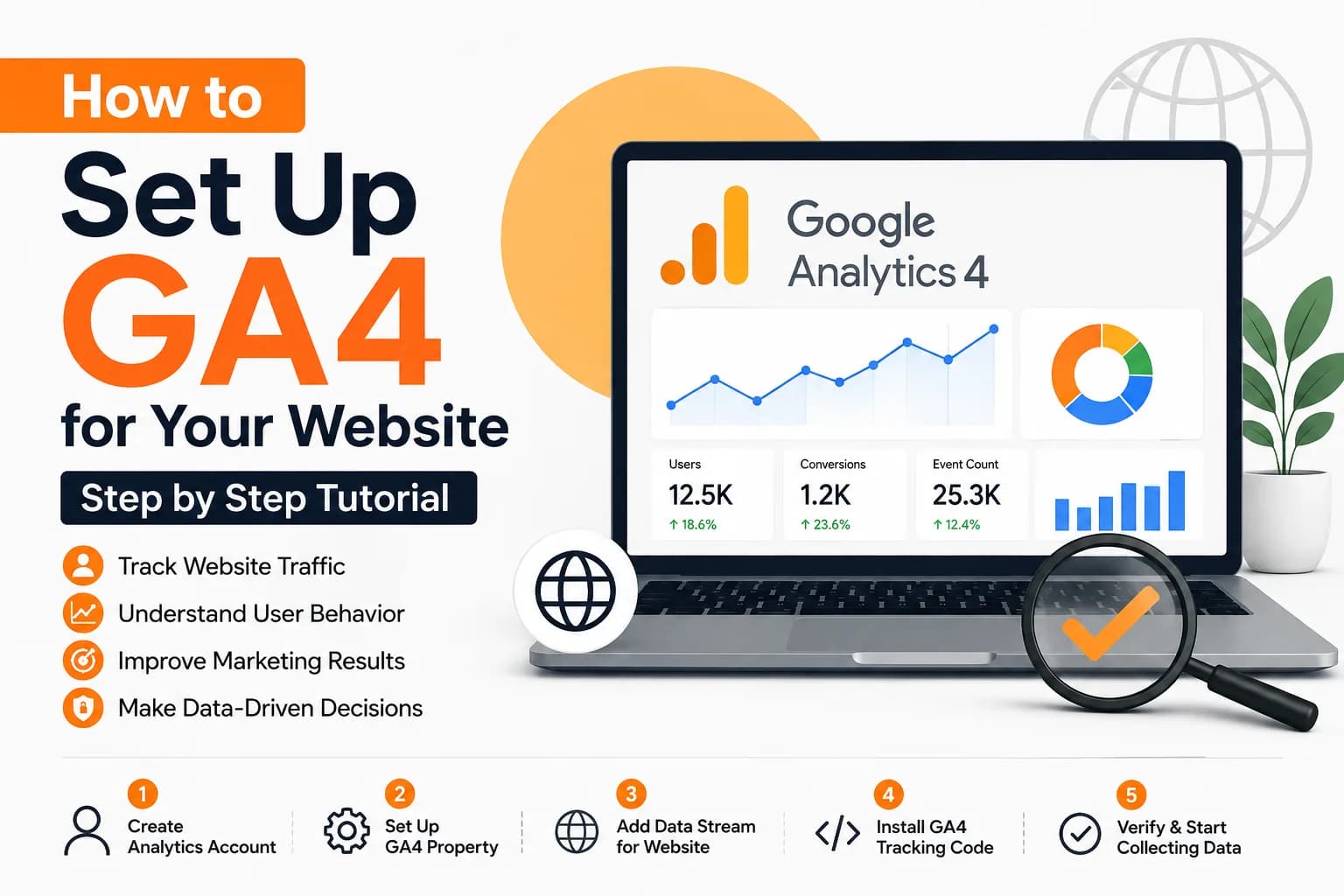
How to Set Up GA4 for Your Website Step by Step Tutorial
Key takeaways
- GA4 stands for Google Analytics 4.
- Before you can track anything you need a Google Analytics account.
- A property is where your website data actually lives.
- A data stream tells GA4 where to collect data from.
Google Analytics 4 has become the standard way to track website traffic and user behavior. If you run a website and want to know who visits it what they click and where they drop off you need GA4 set up correctly from day one. Many website owners either skip this step or set it up wrong, which means they lose months of useful data. This tutorial walks you through the full setup process in simple steps so you can start collecting accurate data right away. Whether you are a beginner or someone who has struggled with GA4 before, this guide will help you get it right.
What Is GA4 and Why It Matters
GA4 stands for Google Analytics 4. It is the newest version of Google Analytics and it works very differently from the old Universal Analytics. Universal Analytics stopped processing new data back in 2023, so GA4 is now the only version available to website owners. Instead of tracking sessions, it tracks events, which gives you a clearer picture of how people actually use your site.
Why GA4 Is Important
It tracks user behavior across website and app in one place
It uses event based tracking which is more detailed than old page view tracking
It helps you understand the full customer journey
It works well with Google Ads for better ad targeting
It gives you data even when cookies are limited
If the setup feels technical or you keep getting stuck at some step our team knows how to set up GA4 properly and can take care of it for you.
Before You Start
Make sure you have admin or editor access to your website files or CMS
Confirm whether Universal Analytics was used before so you know if you need fresh setup or migration
Have your website domain and business details ready
Decide who on your team will manage GA4 access later
Step 1: Create Your Google Analytics Account
Before you can track anything you need a Google Analytics account. This is the first building block of your setup.
How to Create the Account
Go to analytics.google.com and sign in with your Google account
Click on Admin in the bottom left corner
Click Create Account
Enter your account name such as your business name
Choose your data sharing settings and click Next
Fill in your business details and click Create
Once this is done you will have a working Google Analytics account ready for the next step.
Step 2: Set Up a GA4 Property
A property is where your website data actually lives. One account can have multiple properties if you manage more than one website.
Steps to Create a Property
Inside your account click Create Property
Enter your website or business name as the property name
Select your correct time zone and currency
Click Next and fill in business details like industry and size
Choose your business objectives such as generate leads, examine user behavior or drive online sales
Click Create to finish setting up the property
GA4 uses the business objective you pick to show you reports that actually matter for your goals instead of generic ones. This property is what connects your website to Google Analytics, so make sure the details are correct before moving forward.
Step 3: Add a Data Stream for Your Website
A data stream tells GA4 where to collect data from. For most businesses this means connecting your website.
How to Add a Web Data Stream
Inside your new property click Data Streams
Click Add Stream and choose Web
Enter your website URL
Give the stream a name such as Main Website
Turn on enhanced measurement, so GA4 automatically tracks scrolls, outbound clicks and file downloads
Click Create Stream
After this step GA4 will generate a Measurement ID that starts with G- followed by numbers and letters. Keep this ID safe because you will need it in the next step.
Step 4: Install the GA4 Tracking Code on Your Website
This is the step where GA4 actually starts collecting data. The right method depends on what platform your website runs on.
Ways to Install the Tracking Code
Paste the GA4 code directly into the header of your website if you manage raw HTML
Use Google Tag Manager for a cleaner setup without touching code every time you make a change
On WordPress use a plugin like Site Kit by Google to connect your account in a few clicks
On Shopify install the Google and YouTube sales channel and follow the prompts to link your tag
On Wix or Squarespace use the built in Google Analytics field under site settings and just paste your Measurement ID
If your website is built on a custom platform or you are unsure how to add code without breaking something our website design team can install and test the tracking for you.
How to Confirm GA4 Is Working
Open your website in a new tab after installing the code
Go to Reports and click Realtime inside GA4
Check if your own visit shows up within a minute or two
If nothing shows up recheck the code placement or clear your cache and try again
Step 5: Set Up Key Events and Conversions
Once tracking is live you need to tell GA4 what actions matter most to your business. These are called key events in GA4 and they used to be called conversions.
How to Set Up Key Events
Go to Admin and click Events under your property
Review the events GA4 is already tracking automatically through enhanced measurement
Click Create Event if you need a custom one
Mark important events as Key Events using the toggle
Test the events using the DebugView to confirm they fire correctly
Common key events include form submissions, button clicks, purchases and newsletter signups. Set these up based on what actually matters for your business goals.
Step 6: Link GA4 with Google Search Console and Google Ads
Linking GA4 with other Google tools gives you a much bigger picture of your traffic and performance.
Tools You Should Link
Google Search Console for keyword and search performance data
Google Ads for tracking ad campaign results
Google Merchant Center if you run an online store
BigQuery if you need advanced data analysis later
These links do not take long to set up but they add huge value to your reporting once connected.
Step 7: Set Up Reports and Dashboards
Raw data means nothing if you cannot read it easily. GA4 lets you build custom reports so you see the numbers that matter most to you.
Steps to Build Useful Reports
Go to the Reports section and explore the default reports
Use Explorations to build custom reports for specific needs
Set up a dashboard for traffic sources, user behavior and conversions
Save reports you check often so they are easy to find
Share reports with your team if needed
A clean dashboard saves time every week because you are not digging through raw data to find answers.
Common Mistakes to Avoid When Setting Up GA4
Many website owners make small mistakes during setup that cause data problems later. Avoiding these early saves a lot of headache.
Mistakes to Watch For
Installing the tracking code twice, which causes duplicate data
Forgetting to mark important actions as key events
Not testing the setup using DebugView or the Realtime report before going live
Ignoring data filters which can lead to messy reports
Not linking Search Console early enough
Skipping the business objectives step which leaves you with generic reports
Taking a few extra minutes to double check each step now will save you from fixing broken data months later.
Conclusion
Setting up GA4 correctly is one of the most important things you can do for your website. It gives you real insight into how visitors behave and helps you make smarter decisions for your business. Follow each step carefully, test your setup before relying on the data and keep your tracking clean from the start. Once GA4 is running properly you will have a strong foundation for growth and better marketing decisions going forward.
FAQs
How long does it take to set up GA4?
Basic setup usually takes about thirty minutes to an hour. If you are also setting up key events and linking other tools it may take a bit longer.
Do I need coding knowledge to set up GA4?
Not always. You can use Google Tag Manager or a plugin to avoid touching code directly. Manual code installation is only needed if you prefer that method.
Can I use GA4 and old Universal Analytics together?
No. Universal Analytics stopped processing new data already. GA4 is now the only supported version so you should be using it as your main analytics tool.
Why is my GA4 data not showing up?
This usually happens because the tracking code is missing an error or was installed incorrectly. Check the Realtime report or DebugView to confirm your events are firing properly.
Is GA4 free to use?
Yes. GA4 is free for most businesses. There is a paid version called GA4 360 but it is meant for large enterprises with very high data volume needs.
What is a Measurement ID in GA4?
It is a unique code starting with G- that connects your website to your GA4 property. You get it when you create a data stream and you need it every time you install the tracking code.
Should I use Google Tag Manager or install GA4 manually?
Use Google Tag Manager if you plan to add more tags later or don't want to touch code every time. Manual installation works fine for a simple one time setup but any future change means editing code again.
What is enhanced measurement in GA4?
It is a setting that automatically tracks common actions like scrolls, outbound clicks and file downloads without extra setup. It is turned on by default when you create a web data stream and saves you from building basic events manually.
How many properties can I create in one GA4 account?
You can create a large number of properties under a single account which is useful if you manage multiple websites or brands. Most small businesses only need one property per website though.
Can I set up GA4 on Shopify or WordPress without a developer?
Yes. Shopify has a built in Google and YouTube sales channel for linking your tag and WordPress has plugins like Site Kit by Google that connect your account in a few clicks without touching code.
About the author

Sr. SEO Executive · 3 years' experience
Harsh Rajput is a Senior SEO Executive with 3+ years of experience in SEO, digital marketing and AEO/GEO strategy. He leads a team of SEO executives at Digisutra Solutions, handling keyword research, technical SEO, on-page/off-page optimization, link building and content strategy, while helping brands rank in Google AI Overviews and LLM platforms like ChatGPT, Claude and Gemini. He has worked with clients across India, USA, UAE, and Australia in industries like e-commerce, finance and technology.
Reader reviews

Up next · SEO & AI search · 21 min
Technical SEO Audit Checklist Covering 47 Issues That Can Hurt Your Rankings

Related · SEO & AI search · 16 min
How to Create an XML Sitemap and Submit It to Google